 ForwardMsg
How to Obtain Your Discord Client Token
Discord Client Tokens allow our automation to authenticate with your Discord account, enabling us to access and forward your messages.
🔴 Watch a Video Tutorial 🎥
Method 1 (Easiest) — Browser Extension
Recommended: This is the simplest and safest way to get your Discord token. No code pasting required.
You can install the Discord Token Manager — ForwardMsg extension from:
You can also install it manually.
More details on how to install the extension →
Step 1 - Open Discord in Your Browser
- Go to Discord Web App and make sure you are logged in with the account you want to use.
Step 2 - Open the Extension
- Click on the Extensions icon (puzzle piece) in your browser's toolbar (top-right corner).
- Find Discord Token Manager — ForwardMsg in the list and click on it.
- A popup will open displaying your Discord token.
Step 3 - Copy Your Token
- In the extension popup, your Discord token will be displayed.
- Click the Copy button to copy it to your clipboard.
- Your token is now ready to paste into the ForwardMsg platform.
Tip: If the popup is blank or shows an error, refresh the Discord page (
F5) and try again.
Method 2
Note: If this method does not work for you, try Method 3 below.
Step 1 - Log in to Discord via Your Browser
- Visit: Discord Web App
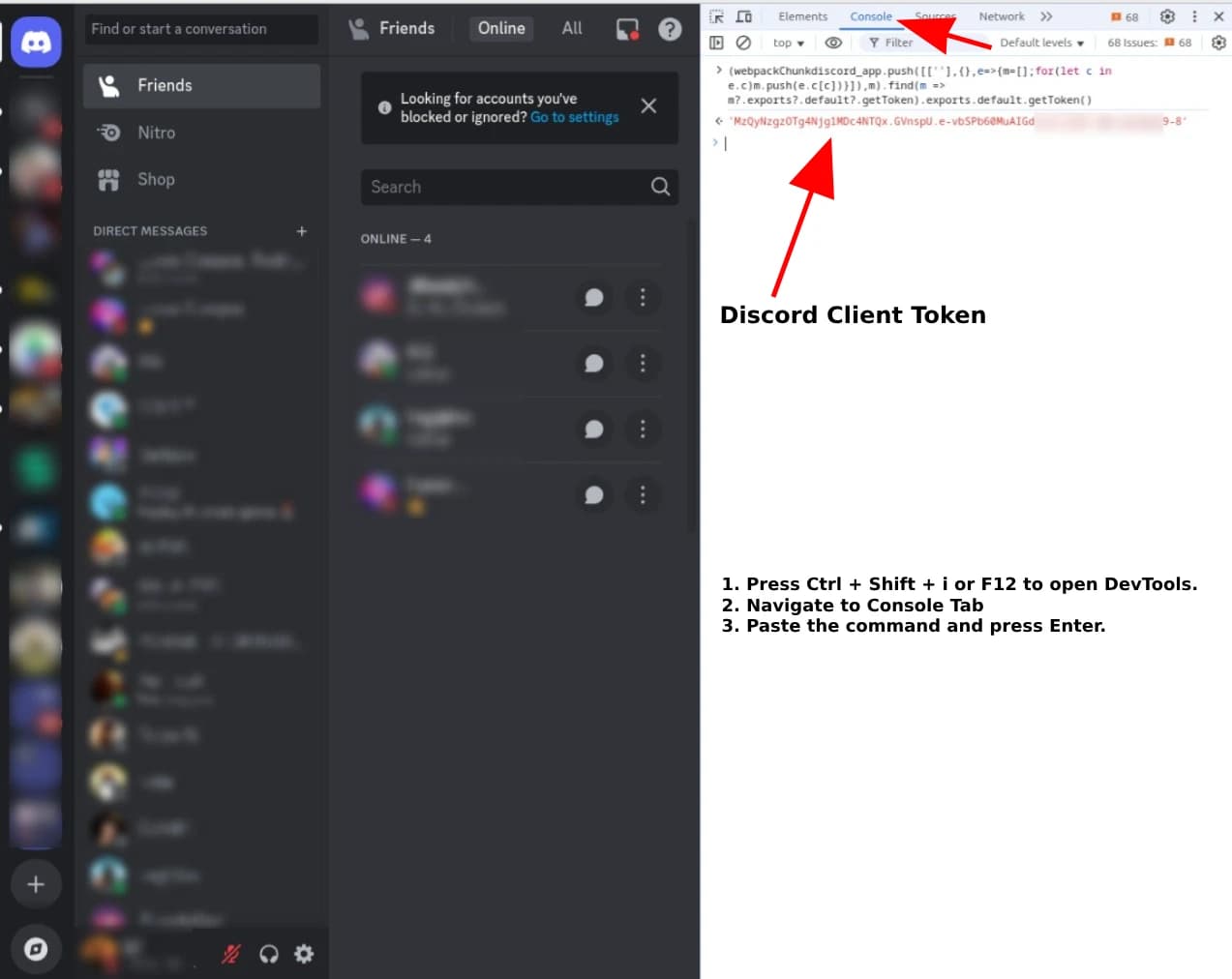
Step 2 - Open Browser Developer Tools
- Press
Ctrl + Shift + IorF12to open DevTools. - Navigate to the
Consoletab.- Warning: Discord may display a security warning about pasting code. Ignore it.
- Paste the following command into the console and press Enter:
(()=>{for(let e of Object.values(webpackChunkdiscord_app.push([[Symbol()],{},e=>e.c])))try{if(!e.exports||e.exports===window)continue;if(e.exports?.getToken)return e.exports.getToken();for(let t in e.exports)if(e.exports?.[t]?.getToken&&"IntlMessagesProxy"!==e.exports[t][Symbol.toStringTag])return e.exports[t].getToken()}catch{}})(); - Copy the returned value—this is your Discord client token.
Method 3
Step 1 - Log in to Discord via Google Chrome
- Open Discord in Google Chrome (not the desktop app) and log in with the account you want to use.
- Visit: Discord Web App
Step 2 - Open Browser Developer Tools
- Press
F12(orCtrl + Shift + I/Cmd + Option + I) to open Developer Tools.
Step 3 - Enable Device Emulation Mode
- Press
Ctrl + Shift + M(orCmd + Shift + M) to enable device emulation mode.
Step 4 - Run the Script
- Go to the
Consoletab.- Warning: Discord may display a security warning about pasting code. Ignore it.
- Paste the following code into the console:
const iframe = document.createElement('iframe') console.log( 'Token: %c%s', 'font-size:16px;', JSON.parse( document.body.appendChild(iframe).contentWindow.localStorage.token ) ) iframe.remove() - Press
Enter— your token will appear in the console. - Copy the token value displayed after
Token:.
Method 4
This method uses the Network tab.
Step 1 - Log in to Discord via Your Browser
- Visit: Discord Web App
Step 2 - Open Browser Developer Tools
- Press
Ctrl + Shift + IorF12to open DevTools. - Navigate to the
Networktab. - Filter results by clicking on
Fetch/XHRorXHR. - Click on any request in the list.
- Go to the
Headerstab. - Locate the
Request Headerssection. - Copy the value of
Authorization—this is your Discord client token.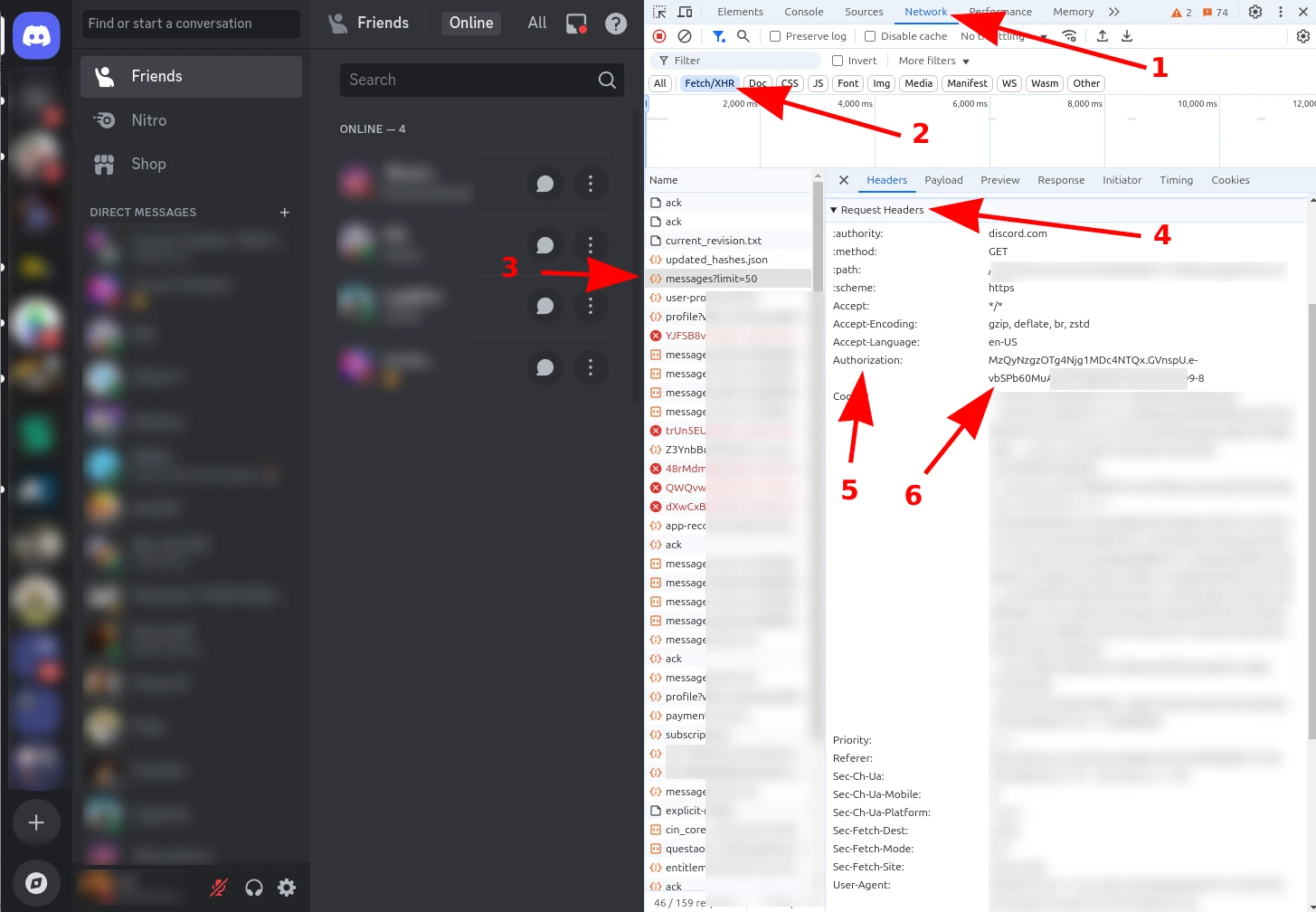
By following these steps, you can retrieve your Discord client token securely and use it on our platform
🎉 Congratulations!
You’ve successfully obtained your Discord Client Token. Now you can seamlessly forward messages between Discord and Telegram using ForwardMsg
What is Next?
Need Help?
Contact us: @forwardmsg_support
Email us: support@forwardmsg.com