 ForwardMsg
Forward Discord Messages to Telegram
Copy messages from Discord to Telegram with a simple account connection and delivery setup.
Forward text, images, videos, and files from Discord to Telegram.
Example: you follow Trading Community, a Discord server where you are not the owner and you are not an administrator. You want posts from its #market-updates channel to arrive in My Market Updates, a Telegram channel you manage. These names are examples; choose your own original channel and receiving chat.
The receiving channel is just our example. You can send the copies to a Telegram group, channel, topic, or private chat instead.
When copying with your Discord account, you do not need to own the original server. You do not need to be an administrator. You do not need to add a bot there.
1. Create the automation
For copying messages, choose between:
- Discord Account: the usual choice when copying from a server you do not own, where you are not an administrator. It uses your account's access, so you do not need to add a bot to the original server. This is the option used in our example.
- Discord Bot: an alternative when you can add a bot to the original server and give it access to the channels you want to copy.
See the account and bot comparison for more details.
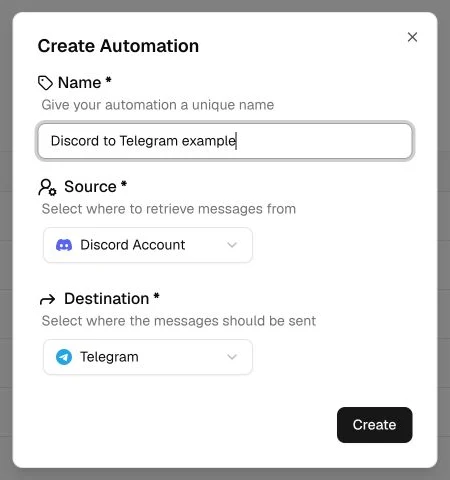
- In the dashboard, select Create Automation and give it a name.
- Choose Discord Account under Source and Telegram under Destination.
- Select Create.
2. Connect Discord
- Open Automation Settings → Source and choose your saved account or bot. To add one, follow Connect a Discord Account or Create a Discord Bot.
- Select Update Settings, then Start. Wait for Running before choosing the chats to monitor.
3. Choose the chats to copy from
- Select Add Server and choose Trading Community, the server containing the original messages in this example.
- Add the original channel, #market-updates in our example. Use Add Channel or Add Server to include more.
Only chats you add to this list are monitored.
4. Prepare the receiving Telegram chat
Create a Telegram bot or reuse one you already have. Add it to My Market Updates, the receiving channel in this example. You do not need to add it to the original chat you copy from.
- Channel: make the bot an administrator with permission to post.
- Group or topic: add it to the receiving group and allow it to send messages.
- Private chat: the person receiving the copies must open the bot and send /start first.
5. Save where the copies should arrive
- Click the original channel, #market-updates, in the left-hand list to open its settings.
- Open Routing → Add Destination and choose or add your Telegram bot.
- Choose My Market Updates, the receiving channel in this example. If it is missing, use Add Telegram Chat with its Chat ID.
- Complete Add Destination, then select Save Changes.
For a specific receiving topic, follow Forward to Telegram Topics.
6. Try one message
In this example, Maya is the person sending the original message. When she posts Today's market summary is ready. in the original chat, ForwardMsg delivers it to My Market Updates with the default format:
Maya: Today's market summary is ready.If you cannot post in the original chat, use your own test chats.
Customize messages
You can change how the final message looks. Message Format lets you choose what appears, including the author's name, a header, and a footer. Replace or Remove Text changes words or links, and Filters choose which messages get forwarded.
You can also forward images, videos, audio, files, and Discord embeds—the cards attached to links or bot posts. Choose what to include in Forward Options, and enable paid media types in Automation Features below Start.
For more customization, Translations changes the message language, and Watermark Image adds your text or logo to images.
Add more chats or destinations
One automation can copy from many chats and deliver to many Telegram destinations:
- Different destinations for each original chat: click each monitored chat and set its own Routing.
- The same destinations for every monitored chat: set them in Global Settings → Routing.
- Several destinations for one original chat: add more destinations in that chat's Routing.
You can reuse the same Telegram bot for receiving chats it has access to. For another destination platform, create another automation. See Forward Chats to Separate Destinations and How Settings Work for examples.
If messages do not arrive
Follow Messages Are Not Forwarding to check the receiving bot or webhook, saved destinations, and filters.